QuadChroma 1.0.1
QuadChroma manual
Install, connect, share – everything in one place.
Updated 21 October 2026 · for QuadChroma 1.0.1
Nothing found. Try another word.
Quick start
#Three steps
#QuadChroma puts one computer's screen on another, Mac or Windows, in both directions. Sharp enough for text, fast enough for games. One app per computer: it connects to other computers and lets them in.
- Install QuadChroma on both computers, from the download page.
- Share the computer you want to reach: choose Try free for 7 days or enter your key, then turn on Share this Mac or Share this PC on its start screen.
- Connect from the other computer: click the shared computer in the list and enter the password from its QuadChroma menu. Or click Ask for “Allow”, then Allow on the shared computer.
That's it. Connecting is free. Ctrl+Esc takes you back to the start screen.
Tip: The computer you share is the host. The one you control it from is the client. Every QuadChroma can be both.
Installation
#What you need
#- A Mac with Apple silicon and macOS 14 or later (for HDR as host: macOS 15).
- A PC with Windows 10 or 11, 64-bit (x64).
- Your local network, or your own VPN.
- A monitor, an HDMI dummy plug or a virtual display on the computer you share.
- Internet on the shared computer now and then, for the licence.
All details, including which graphics give you 4:4:4 and 10-bit, are on the features page.
Install QuadChroma
#Install QuadChroma on every computer you want to use. Get it from the download page.
Mac
- Open the DMG and drag QuadChroma into Applications.
- Start it from Applications.
- macOS asks once whether to open an app from the internet. Click Open.
- On macOS 15 and later, macOS asks whether QuadChroma may find devices on your local network. Click Allow.
Windows
With the setup (recommended)
- Double-click the setup on the PC itself, not with “Run as administrator”.
- QuadChroma is signed, and Windows shows Robert Brandt as the verified publisher. If SmartScreen still warns, click More info, then Run anyway.
- The setup asks once for administrator approval, shows the licence terms, asks how you want to use this computer, lets QuadChroma through the firewall for private networks and starts it.
Portable ZIP
Rather not install? Unpack the ZIP completely and start quadchroma.exe from that folder. Keep all its files together, and allow QuadChroma through the firewall for private networks. For access before sign-in, QuadChroma installs itself when you need it.
First start
#Accept the terms
#Windows
Installed with the setup? You've already accepted the terms and chosen how to use this computer there.
The first time QuadChroma starts, it shows the licence terms. Click Accept to go on.
Choose how you use this computer
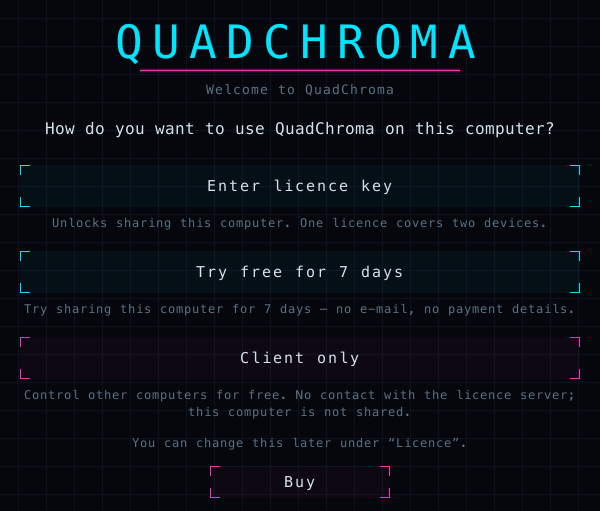
#Next, QuadChroma asks how you want to use this computer:
- Enter licence key: you already have a licence key. Paste it, click Activate, and this computer can be shared.
- Try free for 7 days: share this computer right away for 7 days, with no e-mail and no payment details.
- Client only: only connect to other computers. Free, with no contact to the licence server.
Which one? The computer you want to reach needs a key or the trial. For a computer you only connect from, Client only is all you need.
No key yet? Buy takes you to the website. You can change your choice later under Licence …, for example with Use as client only.
The QuadChroma menu
#QuadChroma keeps running in the menu bar (Mac) or the notification area (Windows) when you close the window or click Close window, so other computers can still reach this one. Its icon opens the QuadChroma menu, with the password, the device ID and the sharing switch.
Mac
Click the QuadChroma icon in the menu bar.
Windows
Right-click the QuadChroma icon next to the clock. Can't see it? Click the small arrow ^ there first. A left-click opens the window.
Open QuadChroma brings the window back. To quit, choose Quit QuadChroma (Mac) or Quit (Windows).
Change the language
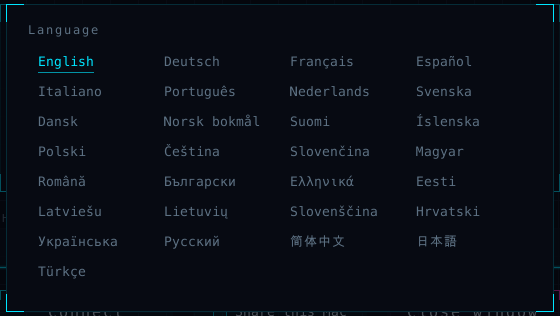
#QuadChroma starts in your system's language. To pick another one, click the language name at the bottom right of the start screen and choose from 29 languages.
Share this computer
#Turn sharing on
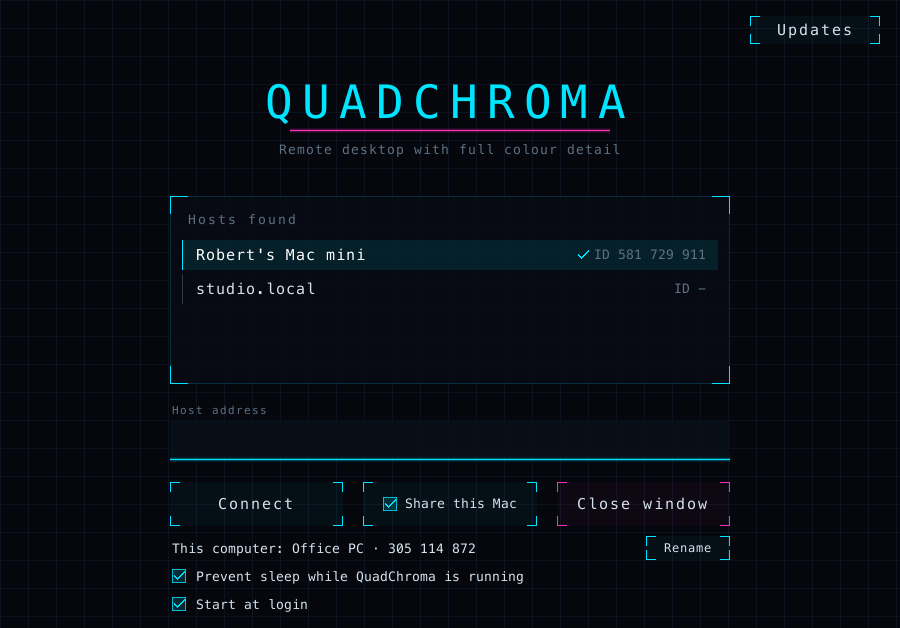
#On the computer you want to reach, turn on Share this Mac or Share this PC on the start screen. The same switch is in the QuadChroma menu. While it is on, the menu says Ready for connections, and Connected: … while someone is connected.
No licence yet? See Licence.
Allow access on the Mac
#Mac
The first time you share, macOS asks for Screen Recording and Accessibility. Allow both.
Said no by mistake? The QuadChroma menu shows what is missing, for example Screen Recording not allowed – open System Settings … or Accessibility not allowed – open System Settings …. Click it, turn QuadChroma on in System Settings and restart QuadChroma.
Find the device ID and password
#The QuadChroma menu shows this computer's Device ID: … and its Password: …. Click either one to copy it, then pass it on to whoever wants to connect. The start screen shows the device ID too, next to the computer's name.
No monitor on the host?
#The computer you share needs an active screen. An HDMI dummy plug or a virtual display does the job, at native resolution.
Ready after every restart
#- Start at login (Mac) or Start with Windows starts QuadChroma every time you sign in.
- Prevent sleep while QuadChroma is running keeps the computer awake and reachable.
Both are on the start screen and in the QuadChroma menu.
Mac
Start at login works once QuadChroma is in the Applications folder. Until then, the start screen says Move QuadChroma to Applications first.
Windows
Installed with the setup, your PC can let the devices you pick in even before anyone signs in, see Access before sign-in.
Rename this computer
#Other computers see this one under its device name. Change it with Rename on the start screen or Change device name … in the QuadChroma menu. Leave the field empty to use the computer's own name.
Connect
#Pick a computer
#Open QuadChroma. Under Hosts found, the start screen lists the QuadChroma computers it finds on your network. A tick marks computers that already know this one. Click a computer to connect.
The QuadChroma menu offers the computers it finds as well, as Connect: ….
Connect by address
#Connecting through your VPN, or the computer is not in the list? Type its address into Host address and click Connect. You'll find the address in that computer's network settings or in your VPN app. On your own network, and for computers you have connected to before, the device ID works too.
Connecting over the internet without a VPN is coming soon, see Relay Server.
The first connection
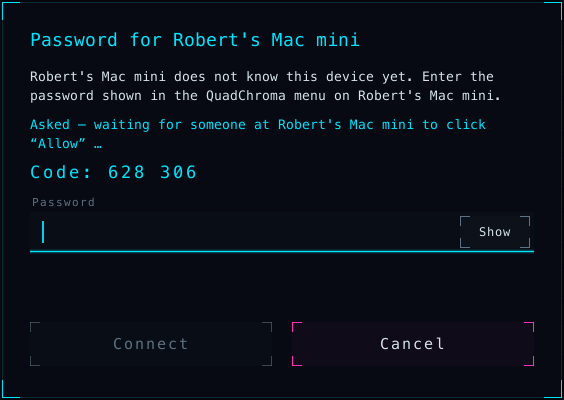
#The first time you connect, the other computer has to let you in. QuadChroma offers two ways:
- Password: enter the password shown in the QuadChroma menu of the other computer, then click Connect.
- Allow: click Ask for “Allow”. On the other computer, a window says that your device wants to control it. Click Allow or Deny there. Both screens show the same six-digit code, for example Code: 628 306. If the digits match, nobody is in between.
From then on, your device connects straight away, without a password.
Typed a wrong password? To use Ask for “Allow” instead, click Cancel and connect again.
Full screen
#Sessions open in full screen. F11 switches it on or off, and QuadChroma remembers your choice. On a Mac, full screen hides the menu bar and the Dock. Ctrl+Esc takes you back to the start screen.
Switch to another computer
#The Computers tab in the session menu lists your other computers. Click one to switch straight to it. The current session ends.

Windows
Each computer in the start screen list has a Desktop shortcut button. It puts a shortcut on your desktop, and a double-click connects right away.
Another device takes over
#If another device connects to the same computer, it takes over the session, and your screen says Another device has taken over the session..
Password and allowed devices
#Change the password
#New devices need the password of the shared computer, shown in its QuadChroma menu.
- Change password …: choose your own, with at least 8 characters.
- New random password: get a new random one.
Devices you have already let in keep their access.
Allowed devices
#Every device you let in appears under Allowed devices in the QuadChroma menu, with its name, ID and the date it was added. Remove takes one off the list, Remove all devices … clears it. A removed device needs the password, or a click on Allow, again.
Access before sign-in
#Windows sign-in screen
#Windows
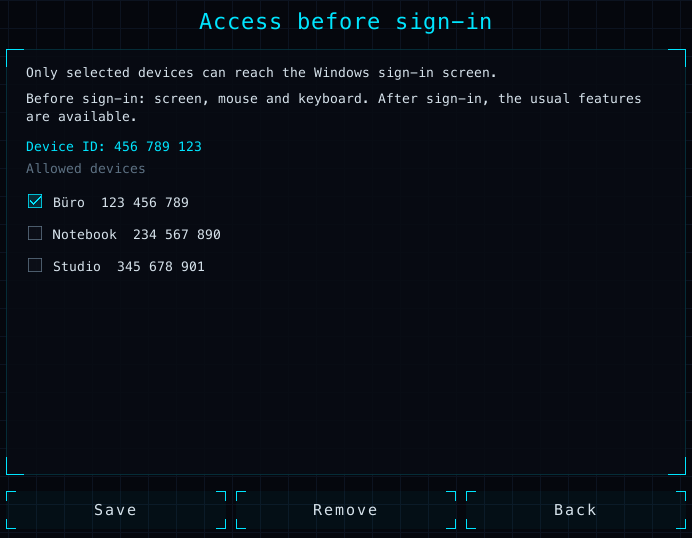
The devices you choose can reach the Windows sign-in screen, even when nobody is signed in.
- Connect from that device once and let it in, with the password or Allow.
- On the Windows PC, click Access before sign-in on the start screen.
- Tick the devices that may reach the sign-in screen and click Save.
From a portable copy, Windows asks for administrator approval at Save, and QuadChroma installs itself.
Before sign-in you get the screen, mouse and keyboard. Sign in as usual, and everything else is there.
Installed with the setup, QuadChroma also lets you confirm admin prompts (UAC) from the other computer. Otherwise such a prompt shows: A window on the Windows PC needs Windows' own confirmation – control is not possible there for a moment.
Unlock a Mac
#A locked Mac comes through as well. While a user is logged in, type the Mac's password at its lock screen, right from the other computer.
In the session
#Open the session menu
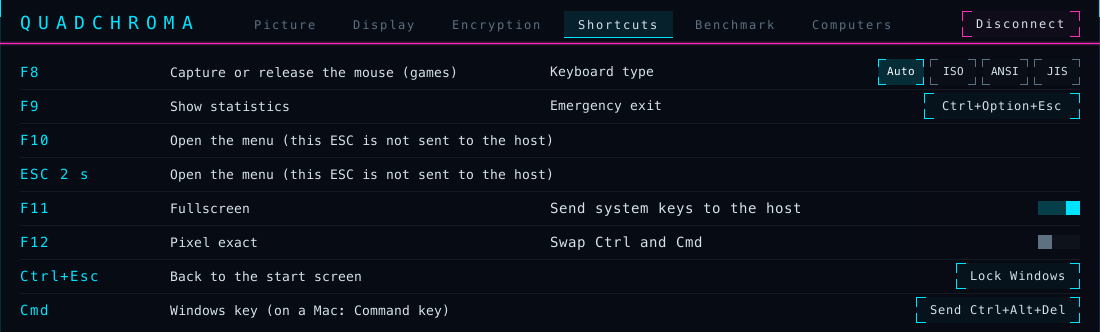
#Press F10, or hold Esc for two seconds, to open the session menu. It has six tabs:
- Picture: bitrate, frame rate, Gaming mode, sound, HDR, screen and codec.
- Display: Fullscreen, Pixel exact (the picture 1:1, without scaling), statistics, Nerd mode, and which graphics this computer uses to show and decode the picture.
- Encryption: the comparison code of this connection.
- Shortcuts: all shortcuts and the keyboard options.
- Benchmark: finds good settings for this computer.
- Computers: switch to another computer.
Hover over a switch for a short explanation.
End a session
#Disconnect at the top right of every tab ends the session and takes you back to the start screen. Ctrl+Esc also takes you back to the start screen.
Shortcuts
#| Key | What it does |
|---|---|
| F8 | Capture or release the mouse (games) |
| F9 | Show statistics |
| F10 | Open the session menu (or hold Esc) |
| F11 | Fullscreen |
| F12 | Pixel exact |
| Ctrl+Esc | Back to the start screen |
On a Mac keyboard and many laptops, hold fn with the F keys, for example fn+F10. All shortcuts are listed in the Shortcuts tab too.
Show statistics
#F9 shows live statistics at the top left: frames per second, latency, resolution, codec, bitrate and more. Choose the rows in the Display tab. Nerd mode adds a bar that shows where the time goes, and the load on both computers.
Picture, sound and HDR
#Bitrate and frame rate
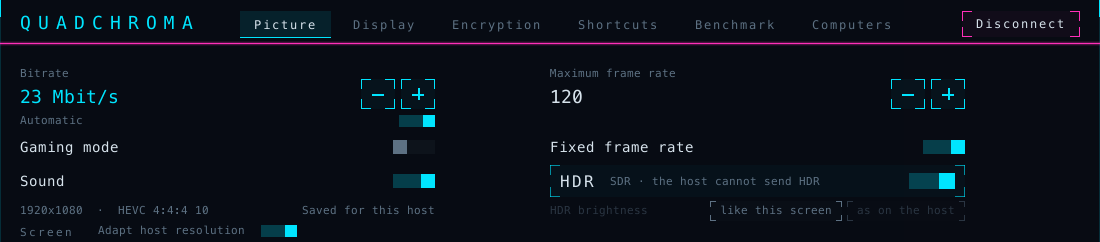
#In the Picture tab, Bitrate is set to Automatic. The bitrate follows your network as you work, with no reconnect. Turn Automatic off to set a fixed value from 2 to 500 Mbit/s with − and +; the label then reads Maximum bitrate.
Maximum frame rate goes from 10 to 240 frames per second, up to what the other computer's display delivers. Fixed frame rate holds that rate even when nothing moves on the host. If the tab says Frame rate adapted to this computer, QuadChroma has picked a frame rate that suits this computer.
Everything in this tab is saved for each computer you connect to (Saved for this host).
Gaming mode
#Gaming mode puts low latency first: one click, even in the middle of a game, with no reconnect. For everything else, normal mode keeps video and scrolling smooth.
Host resolution
#QuadChroma streams the host's screen at its native resolution. Adapt host resolution is on by default: while you are connected, the host switches its screen to your screen's resolution and refresh rate, so text stays sharp, and switches back when you leave. Turn it off if the host should keep its own resolution.
Codec
#Codec is set to Automatic: QuadChroma picks the highest-quality format both computers handle in hardware, HEVC or H.264, in 4:4:4 or 4:2:0, at 8 or 10 bit. A codec you pick by hand stays for that computer until you choose Automatic again. The statistics show the format in use, and under Codec choice why. 4:4:4 there means full colour detail.
HDR
#For HDR, both screens need to show HDR. A Mac host needs macOS 15 or later. On Windows, turn on “Use HDR” in the display settings. HDR then switches on by itself: the HDR switch in the Picture tab glows gold and says active on both sides. Otherwise it says why the picture is SDR.
HDR brightness: like this screen, the default, fits the picture to your screen. as on the host keeps the brightness the host shows.
Sound
#Sound brings the host's sound to you in uncompressed stereo. Turn it off if you don't need it. If the host has no audio output, QuadChroma tells you: The host has no audio output device – the session runs without sound.
Pick a screen
#If the host has several screens, choose which one you see under Screen. Automatic follows the host's main screen. The host remembers your choice. If the chosen screen is unplugged, QuadChroma shows another one and tells you.
Benchmark
#The Benchmark tab tries codecs, frame rates and bitrates in turn while the picture keeps running, then shows its Recommendation.
- Test pattern is on: every step measures the same moving picture, so nothing needs to run on the host. Turn it off to measure what the host's screen shows.
- Click Start and keep the menu open until the run is done.
- Click Apply to save the recommendation for this computer.
Keyboard and mouse
#Your layout just works
#Keys travel by their position, so your own keyboard layout works on the other computer, accents and umlauts included.
From a Windows PC
#Windows
While the QuadChroma window is in front, the Windows key, Alt+Tab and the other system shortcuts go to the other computer.
- Send system keys to the host in the Shortcuts tab turns this off for that computer.
- Emergency exit hands the system keys back to your PC at once: Ctrl+Alt+F12. Click it to choose another shortcut.
- Win+L and Ctrl+Alt+Del always stay on your PC.
Controlling a Mac
- The Windows key works as Cmd: Win+C copies, Win+V pastes, Win+Tab switches apps, Win+Space opens Spotlight.
- AltGr works as Option. On a German Mac layout, AltGr+L gives @.
- PrtSc takes a screenshot of the whole screen, Shift+PrtSc of a selection, and Ctrl+PrtSc opens the screenshot tool. Screenshot on the Mac in the Shortcuts tab opens the screenshot tool too.
- The first time you connect to a Mac, QuadChroma asks for its Keyboard type: ISO (an extra key next to the left Shift key, as on German keyboards), ANSI (as in the US) or JIS (Japanese). Then ^ and < land in the right place. You can change it in the Shortcuts tab.
From a Mac
#Mac
While the QuadChroma window is in front and the mouse is over the picture, Cmd and shortcuts such as Cmd+Tab, Cmd+Space and Cmd+Q go to the other computer: to a Mac as Cmd, to a Windows PC as the Windows key.
- Send system keys to the host in the Shortcuts tab turns this off for that computer.
- Emergency exit hands Cmd back to your Mac at once: Ctrl+Option+Esc. Click it to choose another shortcut.
- The first time, macOS asks you to allow QuadChroma under Input Monitoring and Accessibility (System Settings > Privacy & Security). Until then, Cmd stays on your Mac.
Controlling Windows
- Cmd works as the Windows key. Cmd alone opens the Start menu, Cmd+E opens File Explorer, Cmd+D shows the desktop.
- The right Option key works as AltGr, F13 as Print Screen.
- QuadChroma detects your Mac's keyboard. If ^ and < land in the wrong place, set the Keyboard type in the Shortcuts tab.
Swap Ctrl and Cmd
#Want Ctrl+C to copy on a Mac, as on Windows? Turn on Swap Ctrl and Cmd in the Shortcuts tab. Ctrl then works as Cmd, and the Windows key as Ctrl. From a Mac to Windows, it's the other way round: Cmd+C copies, and Ctrl works as the Windows key. Saved for each computer.
Lock and Ctrl+Alt+Del
#- Lock Mac locks a Mac you control, like Ctrl+Cmd+Q there.
- Lock Windows locks a Windows PC, like Win+L there.
- Send Ctrl+Alt+Del opens the security screen of a Windows PC that runs QuadChroma installed with the setup.
Mouse capture
#Games usually capture the mouse on their own. F8 captures or releases it by hand. When it is captured, Mouse captured · F8 releases it appears for a moment. Gaming mice at 1000 Hz work.
Clipboard and files
#Copy and paste text
#Copy on one computer and paste on the other, both ways. Text works up to 4 MB. Hidden entries, such as passwords from a password manager, stay on the computer where you copied them.
Files and folders
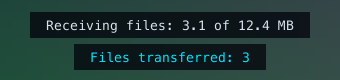
#Copy files and folders in Finder or Explorer, then paste them on the other computer. It works both ways, with up to 4 GB and 10,000 items per copy. QuadChroma shows the progress at the bottom of the picture.
Updates
#Keep QuadChroma up to date
#Click Updates on the start screen.
- Check for updates automatically: QuadChroma looks for updates once a day.
- Install updates automatically: optional. Updates are installed when no connection is active.
- Check now looks right away.
Mac
When an update is there, QuadChroma shows an update window. Install it from there.
Windows
When an update is there, Install update installs it. Portable copy: download the new ZIP from the download page.
Updates come from our own server in Germany. What's new is in the release notes. When an update brings new licence terms, QuadChroma asks you once to accept them.
Licence
#What is free
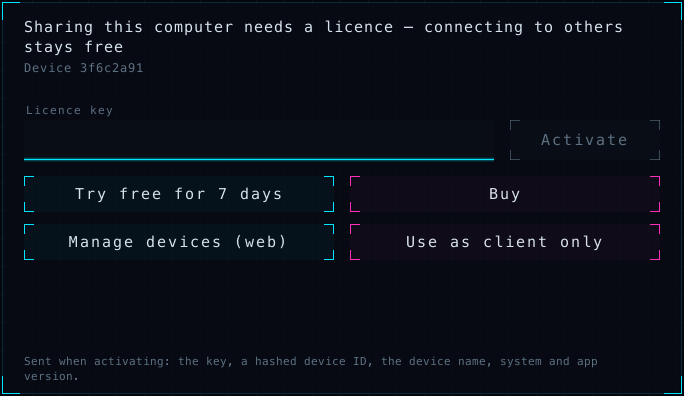
#Connecting to other computers is free, on as many devices as you like. Sharing a computer needs a licence or the 7-day trial.
One licence covers two computers, Mac and Windows in any mix. Several user accounts on the same computer count as one.
- One-time purchase: one major version, for example 1.0 to 1.9, with no fixed term.
- Subscription: every version, for as long as it runs.
Prices are on the pricing page.
Activate
#- Buy a licence on the website. Your key appears on the page and arrives by e-mail. It starts with QC-.
- Click Licence … on the start screen or in the QuadChroma menu.
- Paste the key into Licence key and click Activate. This needs internet.
Use the same key on your second computer.
The 7-day trial
#Click Try free for 7 days on first start or in the licence view. The trial is free, once per computer and major version, with no e-mail and no payment details. It needs internet once. When it ends, sharing pauses until you activate a licence.
Move to another computer
#- On the old computer, open Licence … and click Remove this computer. Then activate on the new one.
- Old computer gone or broken? Activate on the new one and pick the computer it replaces, or remove the old one under Manage devices (web).
- After the Migration Assistant or a restore, click Activate here.
- Moved several times in a short while? The app shows from which day the next move works. The terms have the details.
After a hardware failure, write to us and we'll help.
Offline
#A shared computer confirms its licence about once a week. Offline, sharing keeps running for up to 30 days, and the app tells you in time. Back online, Check again confirms it right away.
My licences
#“My licences” is your customer account at lizenz.quadchroma.tech/portal. Manage devices (web) in the app opens it too. Sign in with the e-mail address you bought with: we send you a six-digit code, and there is no password. There you see your licences and devices, sign devices out, request a new key and pass a licence on.
Pass your licence on
#Want to sell or give away a licence from a one-time purchase? Pass it on, as a whole and free of charge, with Transfer licence in My licences.
- Turn on two-factor sign-in with an authenticator app in My licences. You can start a transfer 7 days later.
- Choose Transfer licence and enter the new holder's e-mail address. Confirm with a code from your e-mail and one from your authenticator app.
- The new holder accepts in their own customer account. After 72 hours, during which you can still cancel, your devices are signed out and the new holder gets a new key.
All conditions are in the terms.
Upgrade and renew
#- A one-time purchase covers its major version. A new major version, such as 2.0, is a new purchase. When you run one, the licence view says so and offers Buy upgrade.
- Subscription ended? Renew it under “My licences”. The new subscription comes with a new key by e-mail: paste it under Licence … and click Activate.
Cancel and withdraw
#Cancel or withdraw without signing in. The links are also at the bottom of every page of the website.
- Cancel a subscription at any time with Cancel contracts here. It runs until the end of the paid period.
- Want your money back? Every purchase comes with a 14-day money-back guarantee, on subscriptions for the first payment. Use Withdraw from contract here. Details: Refunds and withdrawal.
Paddle.com sells the licences as Merchant of Record and e-mails your invoice. Your orders are on paddle.net.
Troubleshooting
#The other computer is not in the list
#- Is QuadChroma running there, with sharing on?
- Are both on the same network? A guest Wi-Fi often keeps devices apart.
- Windows: set your network to Private (Settings > Network & internet). The setup lets QuadChroma through on private networks. With a portable copy, allow it through the firewall for private networks.
- Mac: allow QuadChroma under System Settings > Privacy & Security > Local Network.
- Or type its address into Host address. For admins: TCP 9001–9002, UDP 9003.
Black picture from a Mac
#Black picture, or mouse and keyboard do nothing on a Mac you control? On that Mac, open System Settings > Privacy & Security and allow QuadChroma under Screen Recording and Accessibility. Its QuadChroma menu shows what is missing. Still no luck? Quit QuadChroma there and start it again.
No picture from the host
#- No display is active on the host – connect a monitor, an HDMI dummy plug or a virtual display
- The host is locked or shows a protected screen – the picture returns once it is unlocked. On Windows, see Access before sign-in. On a Mac, unlock it there.
- A Remote Desktop session is active on the host – hand it back to the console with tscon. End the Remote Desktop session on that PC, or hand it back as the message says.
Sharing has stopped
#Open Licence … on that computer. It says why.
- Offline for too long: connect it to the internet and click Check again.
- Subscription expired – sharing is off: renew it under “My licences”, then activate the new key from the e-mail under Licence ….
- Trial ended – sharing is off: activate a licence.
Port 9001 is busy
#Port 9001 is used by another program: another program, or a second copy of QuadChroma, holds that port on this computer. Quit it.
Messages when connecting
#- Wrong password. Check the password in the QuadChroma menu of the other computer.
- … no longer knows this device. Connect again and enter the password. The other computer took yours off its list.
- … uses an older QuadChroma version. Please update it there. See Updates.
- No device with ID … found on the network. Check that both are on the same network, or type the address instead.
The picture stutters
#Use a cable or 5 GHz Wi-Fi, leave Bitrate on Automatic and turn on Gaming mode for games. Then let the benchmark suggest settings.
No HDR
#Next to the HDR switch in the Picture tab, QuadChroma says why the picture is SDR. What HDR needs is under HDR.
System keys stay on my computer
#On a Mac, allow QuadChroma under Input Monitoring and Accessibility. QuadChroma reminds you: System keys stay on this Mac: allow QuadChroma Accessibility and Input Monitoring under Privacy & Security. If an app on your Mac has secure keyboard entry on, QuadChroma says so too: An app has secure keyboard entry turned on. Until it's off, system keys don't reach the host. On both systems, check that Send system keys to the host is on in the Shortcuts tab.
Security and privacy
#Encrypted, always
#Every connection is end-to-end encrypted, with no off switch. Your computers connect directly, on your own network or VPN. The app needs no account.
The six-digit code shows that nobody is in between: when you click Ask for “Allow”, both screens show the same digits. During a session, the code is in the statistics and in the Encryption tab (Secured · comparison code).
New devices need your password or a click on Allow. The password itself never crosses the network.
What the app sends
#- The app sends no usage data. With Check for updates automatically on, it looks for updates once a day.
- In Client only mode, it never contacts the licence server.
- A shared computer confirms its licence about once a week, never with screen content, input or files.
- With a licence or the trial, the app also checks itself for tampering and can report a finding to the licence server, without screen content or files.
- The licence view says: Sent when activating: the key, a hashed device ID, the device name, system and app version.
All details are in the privacy policy.
Uninstall
#Remove QuadChroma
#First free the licence slot: open Licence … and click Remove this computer. Then:
Mac
Quit QuadChroma with Quit QuadChroma in the QuadChroma menu, then drag it from Applications to the Bin.
Windows
Open Settings > Apps, find QuadChroma in the list and choose Uninstall. For the portable copy, quit QuadChroma with Quit in the QuadChroma menu and delete its folder.
Your settings
#Your settings stay in the QuadChroma folder:
- Mac: ~/Library/Application Support/QuadChroma
- Windows: %APPDATA%\QuadChroma
Delete it if you no longer need them.
Help and contact
#Write to us
#Quick answers are on the help page. Still stuck? Write to hello@quadchroma.tech or use the contact form, in English or German. We usually reply within two working days.
Found a security issue? Please tell us this way.
Send your log file
#Please attach the file protokoll.txt from the computer where something went wrong.
- Mac: in Finder, choose Go > Go to Folder and enter ~/Library/Application Support/QuadChroma
- Windows: type %APPDATA%\QuadChroma into the address bar of File Explorer